メインコンテンツへスキップ
AraiAuctions
New Here Members
New Here Members
Login
Company FAQ
言語設定
EN
日本語 English
YouTube Facebook

AI-NET Mobile

Log in from your smartphone

App Storeからダウンロード Google Playで手に入れよう
  • NEWS
  • Auctions
    Auctions CONST. MACHINERY / AGRI. MACHINERY / FORKLIFT / PARTS 4W BAYSIDE / 4W SENDAI VAN & TRUCK / 4W OYAMA / PARTS
    Auctions
    CONST. MACHINERY /
    AGRI. MACHINERY /
    FORKLIFT / PARTS
    4W BAYSIDE /
    4W SENDAI
    VAN & TRUCK /
    4W OYAMA / PARTS
  • ARAI Locations
    ARAI Locations Sendai(Tohoku/Miyagi) Oyama(Kanto/Tochigi) Machinery(Kanto/Tochigi) Bayside(Kanto/Kanagawa) Nagoya(Chubu/Aichi) Fukuoka(Kyushu/Fukuoka) Kansai(Kansai/Osaka)
    ARAI Locations

    Tohoku

    Sendai
    Miyagi Sendai

    Kanto

    Oyama
    Tochigi Oyama Machinery
    Bayside
    Kanagawa Bayside

    Chubu

    Nagoya
    Aichi Nagoya

    Kansai

    Kansai
    Osaka Kansai

    Kyushu

    Fukuoka
    Fukuoka Fukuoka
  • Schedules
  • AI-NET
    About AI-NET AI-NET Plan Information AI-NET PLUS AI-NET Tenpo Zaiko Service AI-NET Service Application
    About AI-NET
    AI-NET Plan Information AI-NET PLUS AI-NET Tenpo Zaiko Service AI-NET Service Application
Login

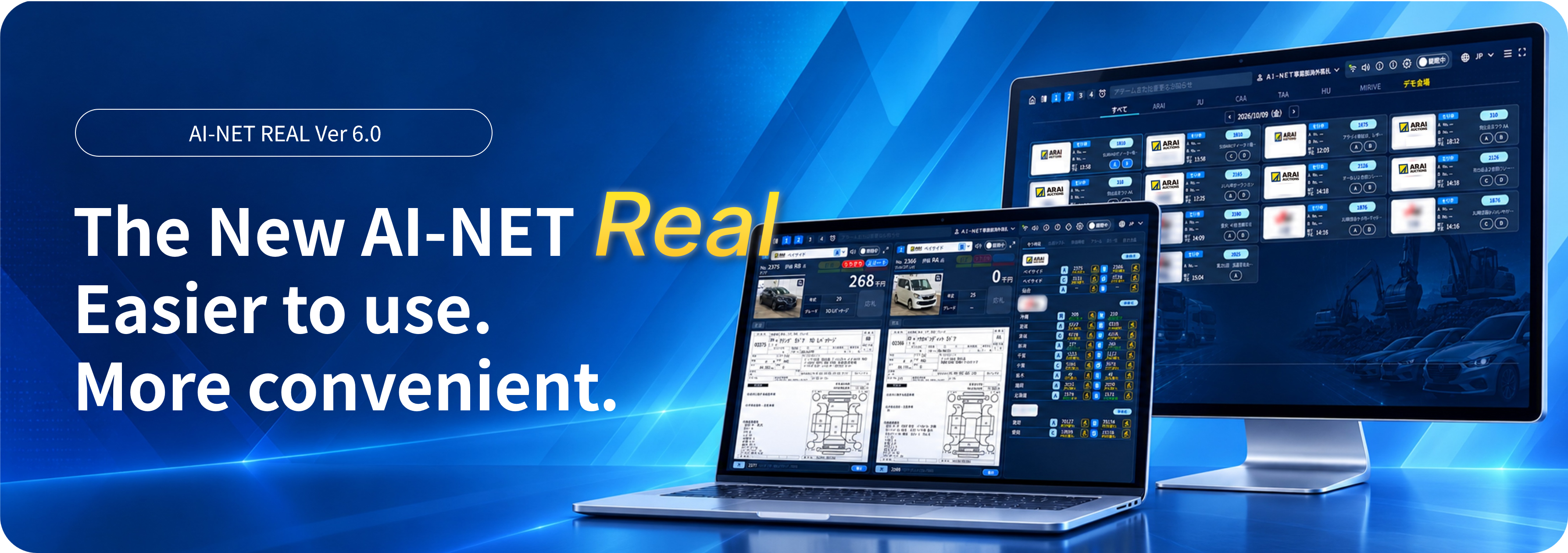
AI-NET Real Ver. 6.0 Introducing the New AI-NET Real

  • TOP
  • Notice
  • 【Introducing AI-NET Real Ver. 6.0】Launching November 30, 2026
AI-NET
2026-11-16

【Introducing AI-NET Real Ver. 6.0】Launching November 30, 2026


  • Japanese
  • English
    top-banner-1


    What's New


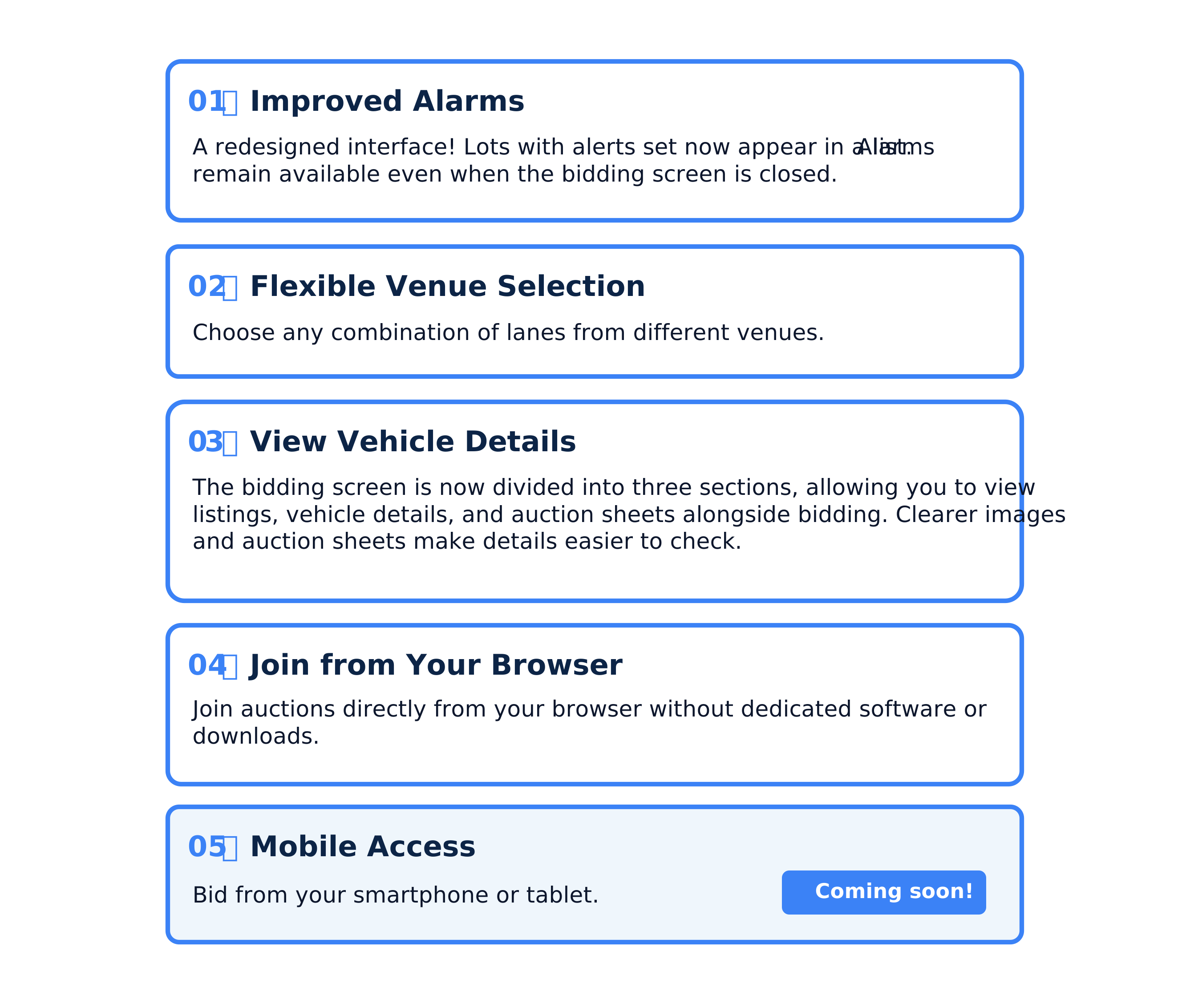
    With the new AI-NET REAL, you can join auctions directly from your browser, view up to four venues at once, and choose your preferred combination of venues and lanes. Improved alerts also make participation easier.

    whatsnew-en-1

    Before & After


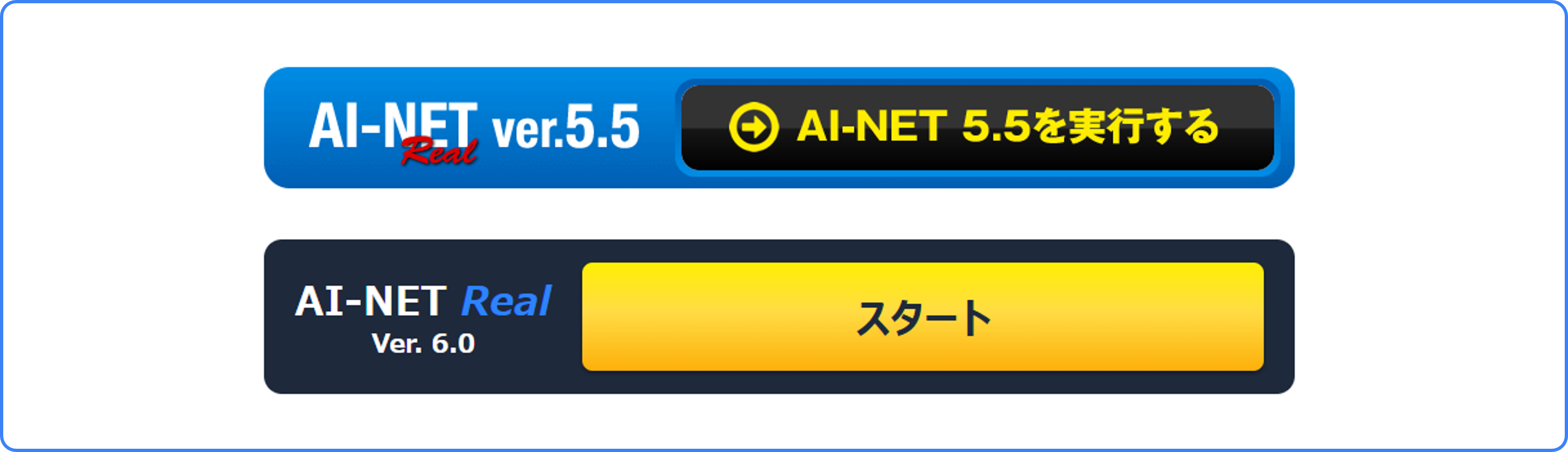
     Compare the previous AI-NET REAL (Ver. 5.5) with the new browser version (Ver. 6.0). 


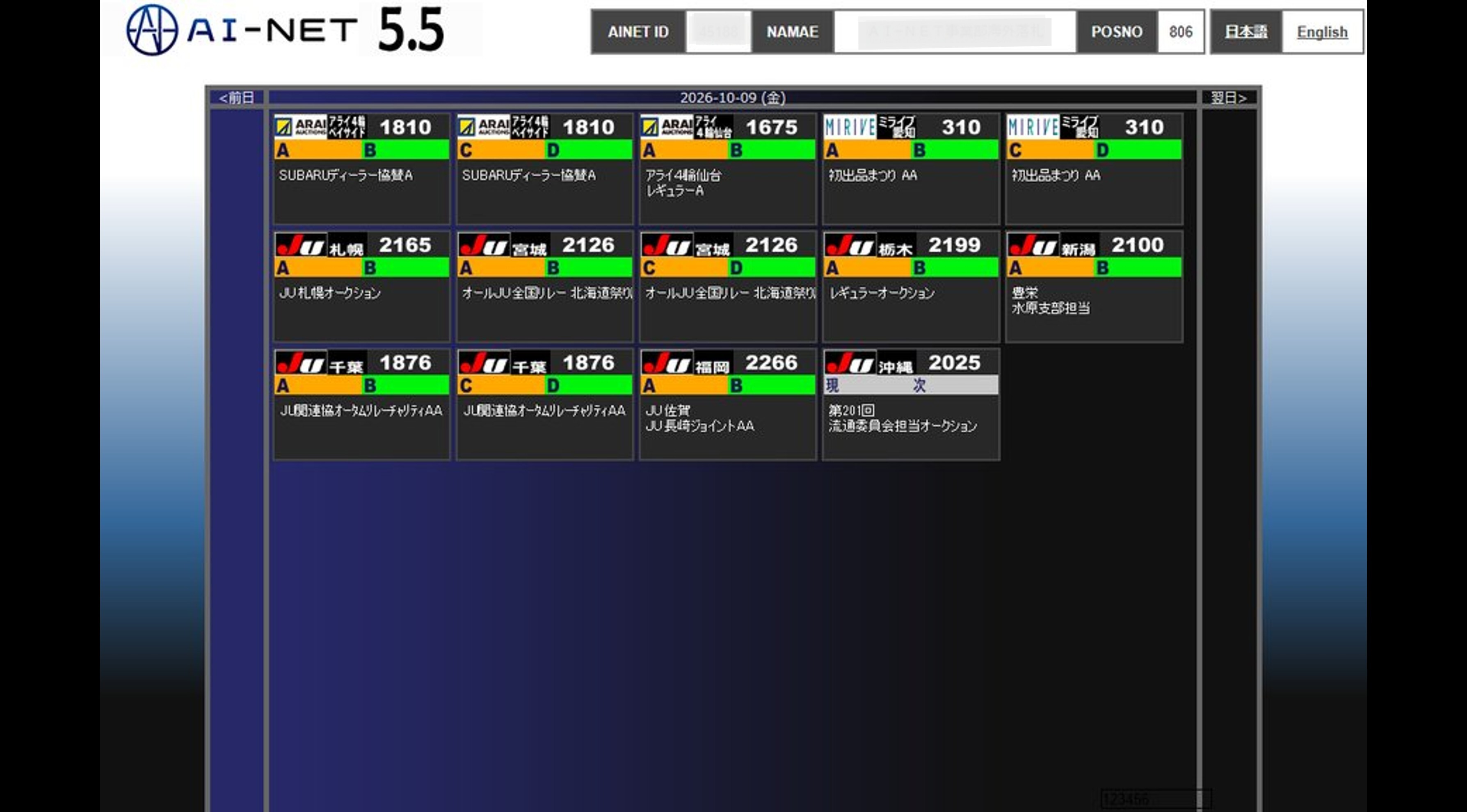
    BeforeVer. 5.5|Venue Selection

     You can only select preset lane pairs, such as A/B or C/D, within a single venue. 
    before-venue

    AfterVer. 6.0|Venue Selection

     You can select up to four lanes across four venues and freely combine lanes, such as A/D or B/C. 
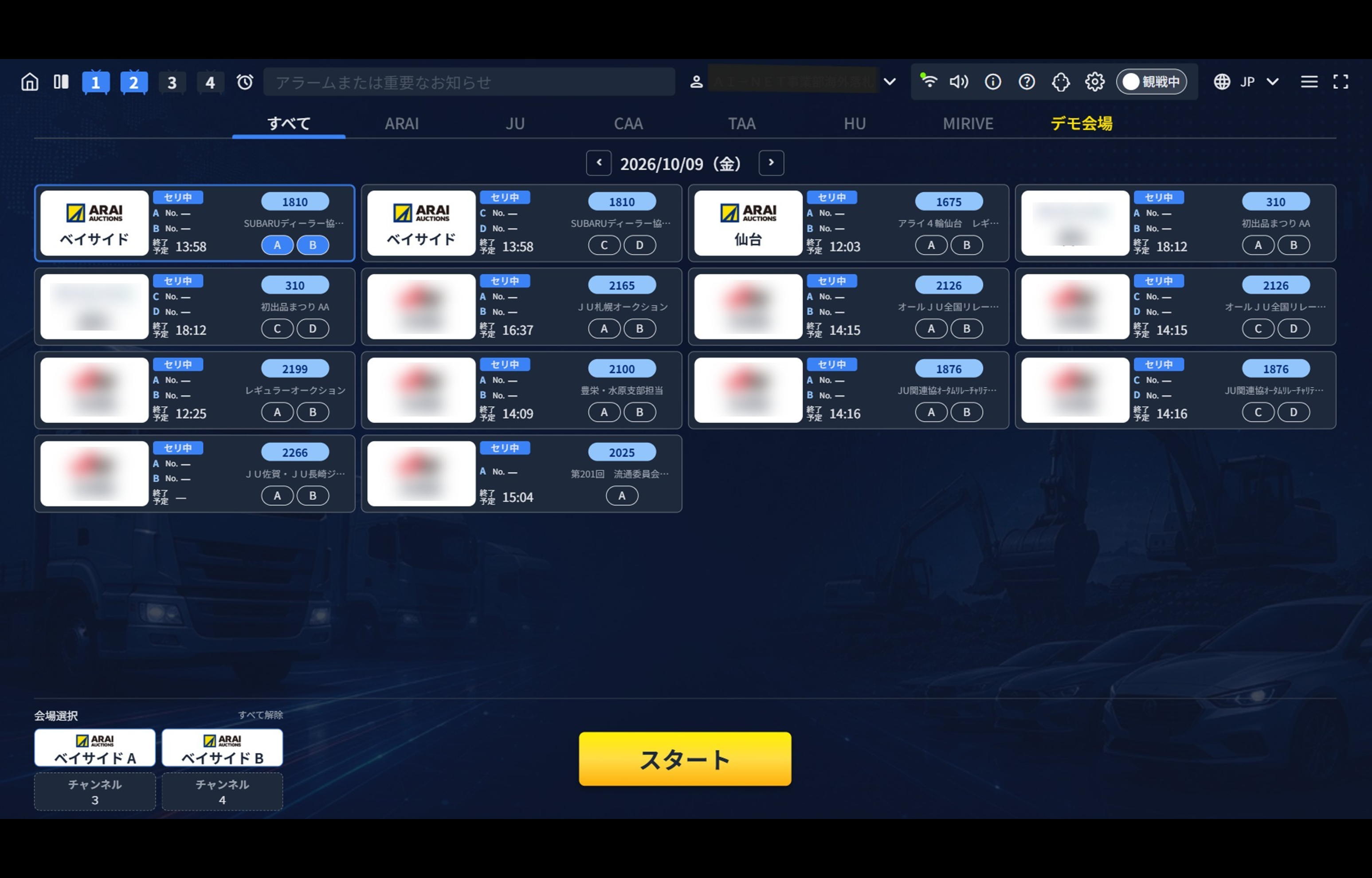
    6.0 venue

    BeforeVer. 5.5|Bidding Screen

    Both front and rear photos are displayed, with auction sheets shown at a resolution of 280 × 280 px.


    Auction progress is shown for multiple venues. Alerts only sound for the venues and lanes you are currently participating in.
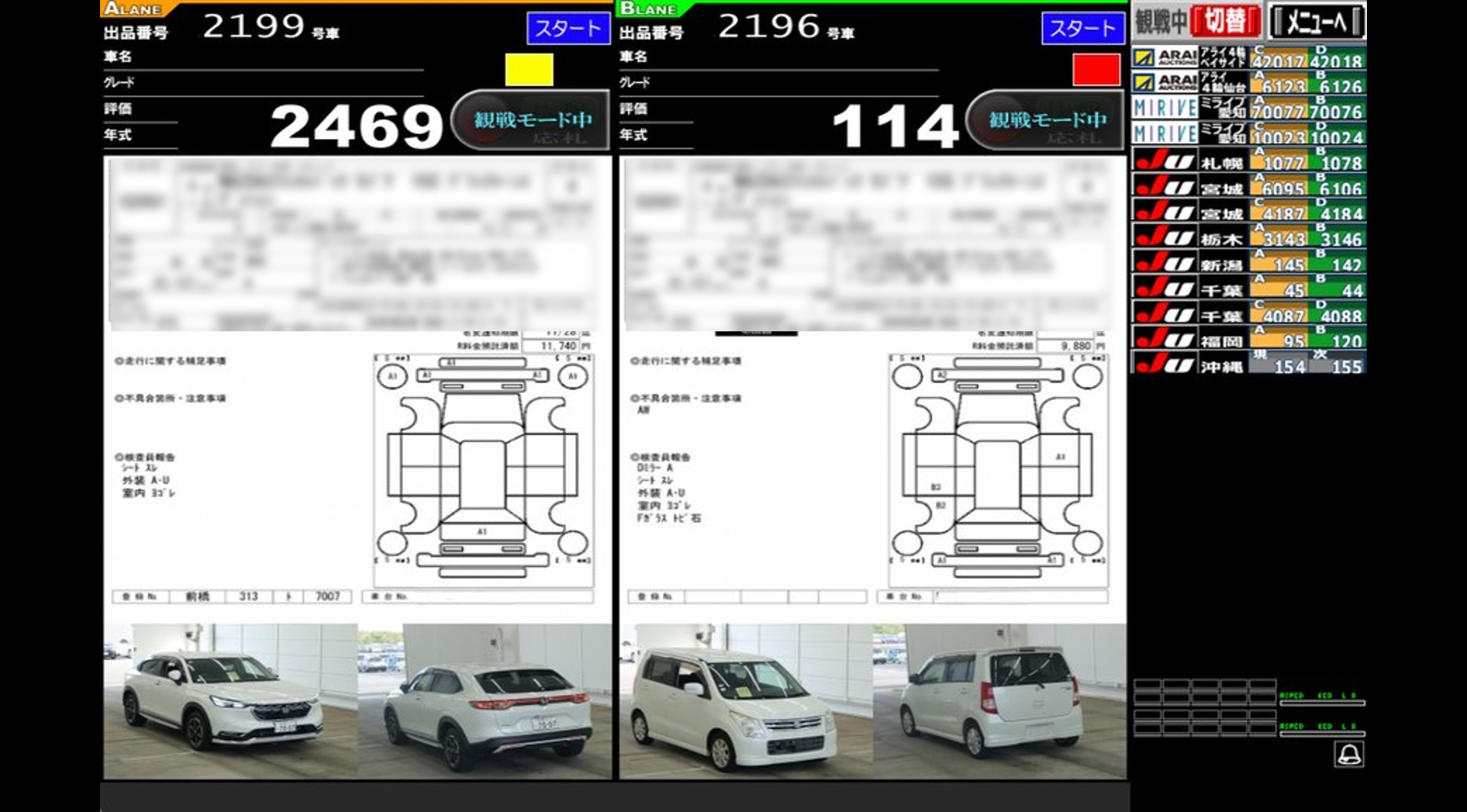
    before-auction

    AfterVer. 6.0|Bidding Screen

    The front photo is displayed by default. Click the magnifying glass icon to view enlarged front and rear photos and a higher-resolution auction sheet in the right-hand side panel.


    You can show or hide auction progress for each venue and check estimated start times, including how many minutes ahead of or behind schedule the auction is running. Improved alerts also sound even when you are viewing another venue.
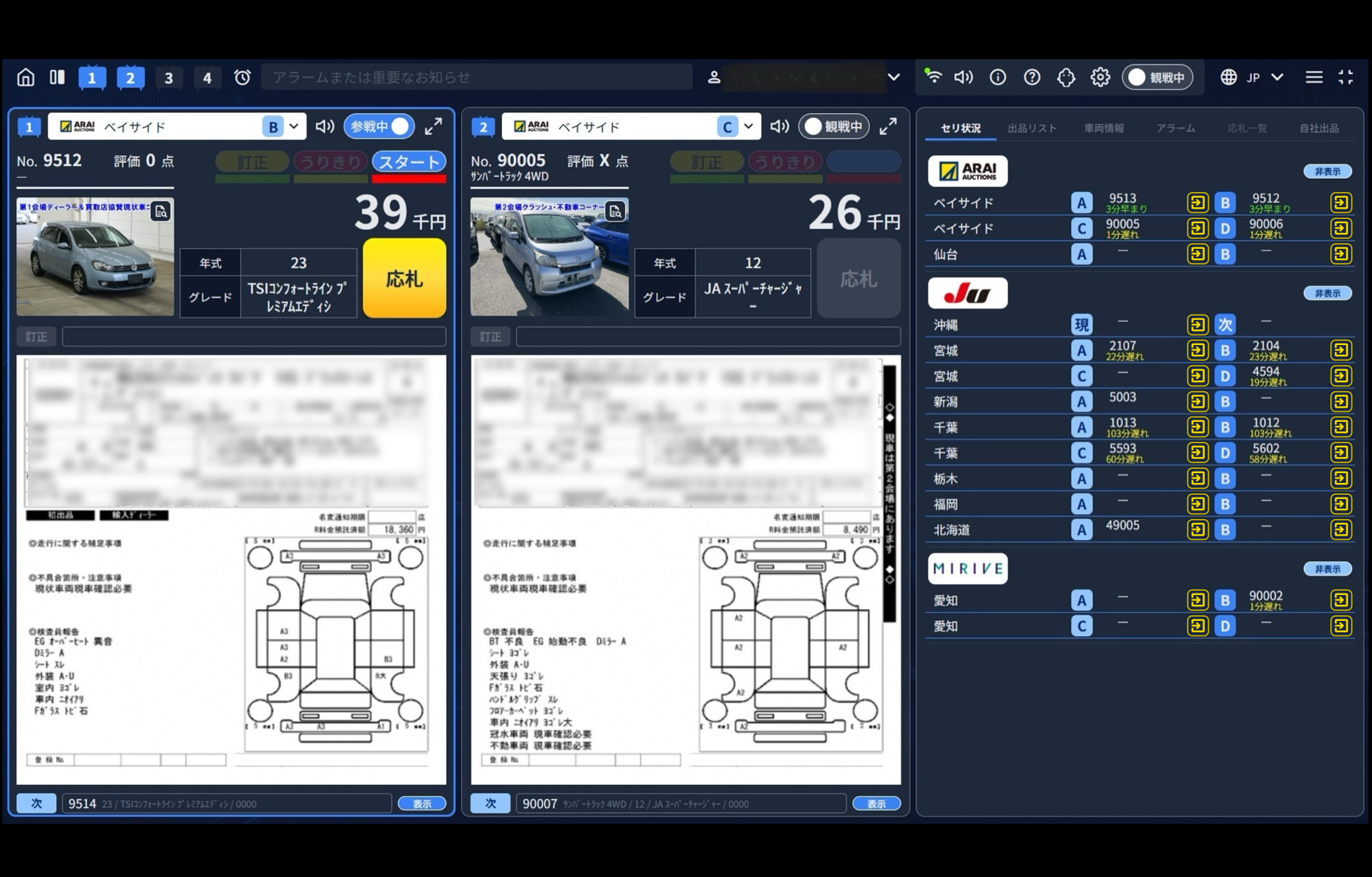
    6.0 bid

    BeforeVer 5.5|Highest Bid Indicator

     When you hold the highest bid, a green "HOLD" indicator lights up next to the bid button. 
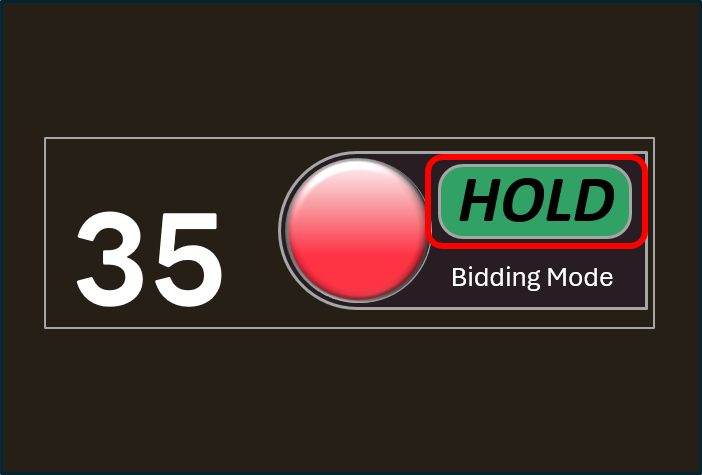
    hold

    AfterVer 6.0|Highest Bid Indicator

     When you hold the highest bid, a yellow "Crown" icon appears before your bid amount. 
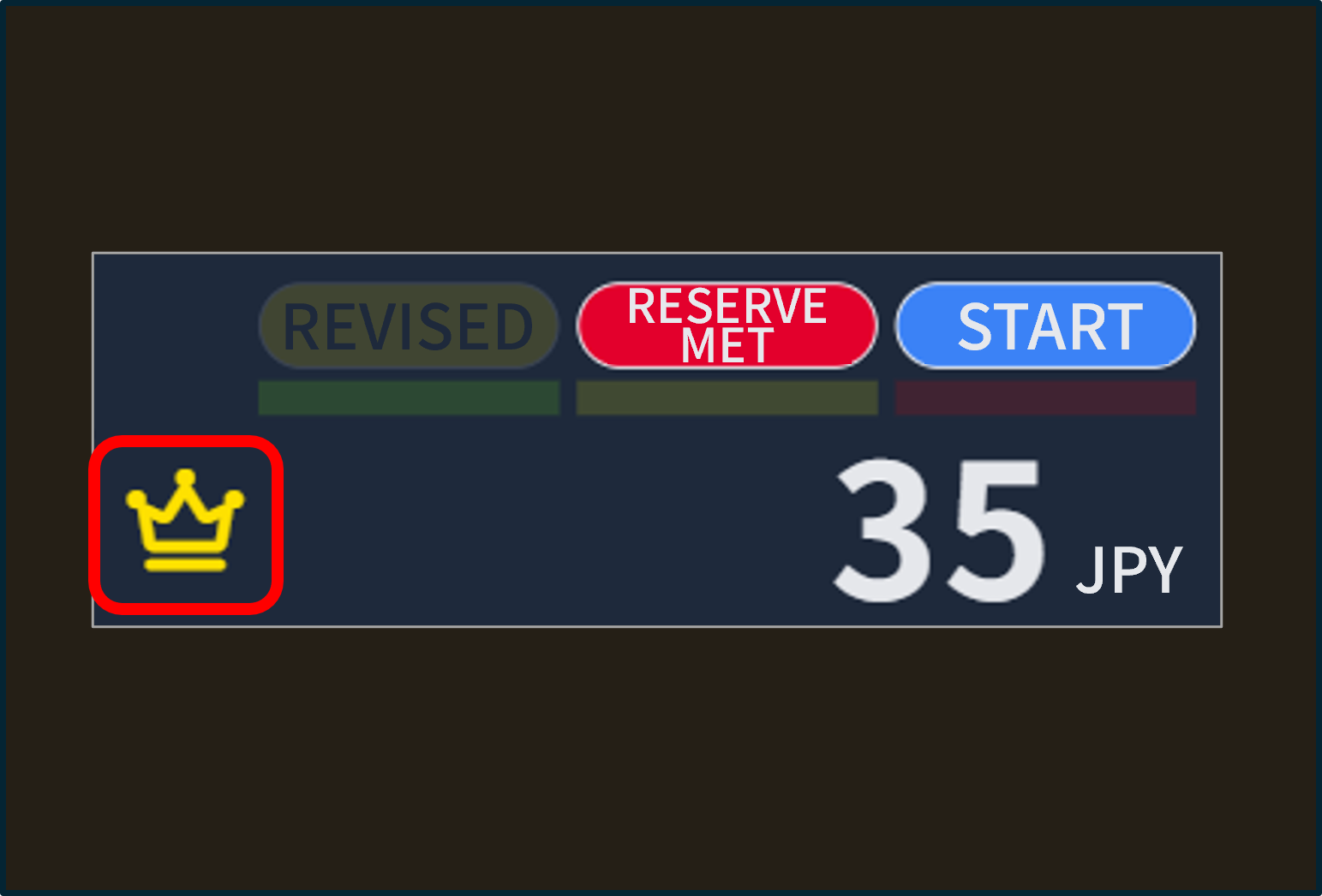
    highestbid

    Ver. 5.5 vs. Ver. 6.0 | Comparison


    AI-NET REAL Ver. 5.5  AI-NET REAL Ver. 6.0
    Software installation required No software installation required
    Windows only Windows and Mac
    (Google Chrome recommended)
    Up to 2 lanes at once
    (Fixed lane layout)
    Up to 4 lanes at once
    (Choose a 1-, 2-, or 4-lane layout)
    For lanes outside your current view:
    Alarms unavailable
    For lanes outside your current view:
    Alarms supported
    Auction listings and vehicle details unavailable View auction listings and vehicle details
     

    A Smooth Transition to the New Version

    After the release of AI-NET REAL Ver. 6.0, the previous version (Ver. 5.5) will remain available for a transition period. You can continue participating in live auctions using the familiar version while getting used to the new interface.


    We also plan to hold an online session introducing the new features and how to use them.

    Ver. 6.0 will eventually replace Ver. 5.5. The transition timeline and online session schedule will be announced once confirmed.

    new-old ver

    Features

    01 View Multiple Auctions

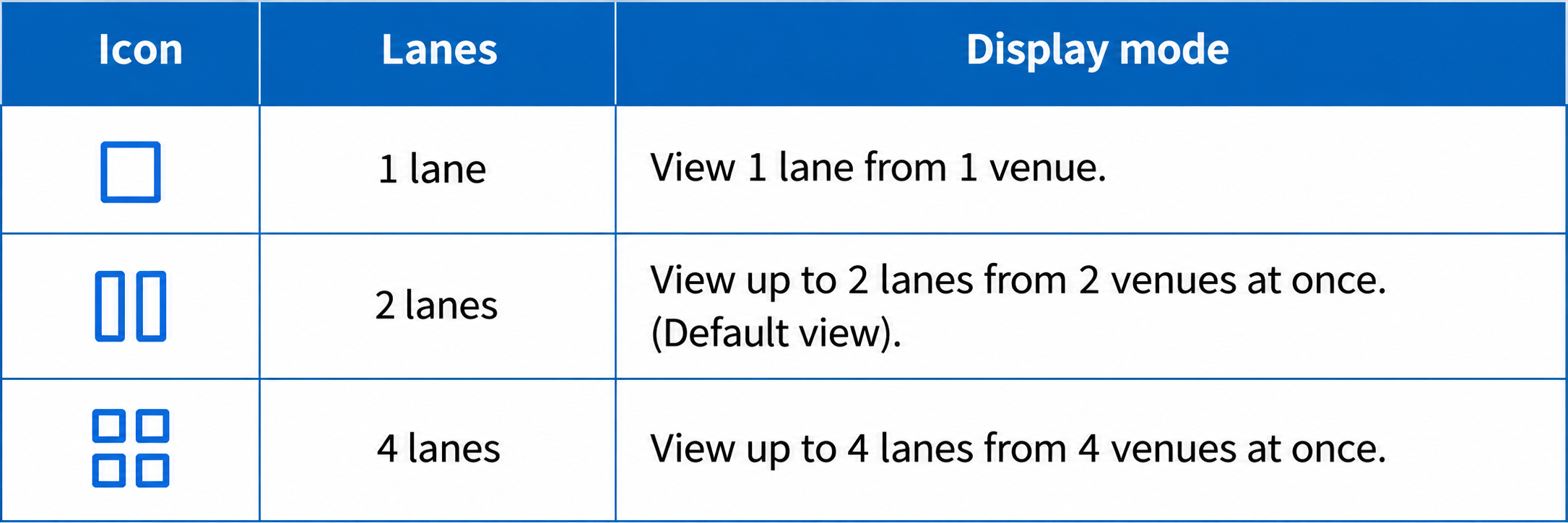
     Use the layout icon at the top left to switch between one, two, or four auction views. 

    Venue lane display modes

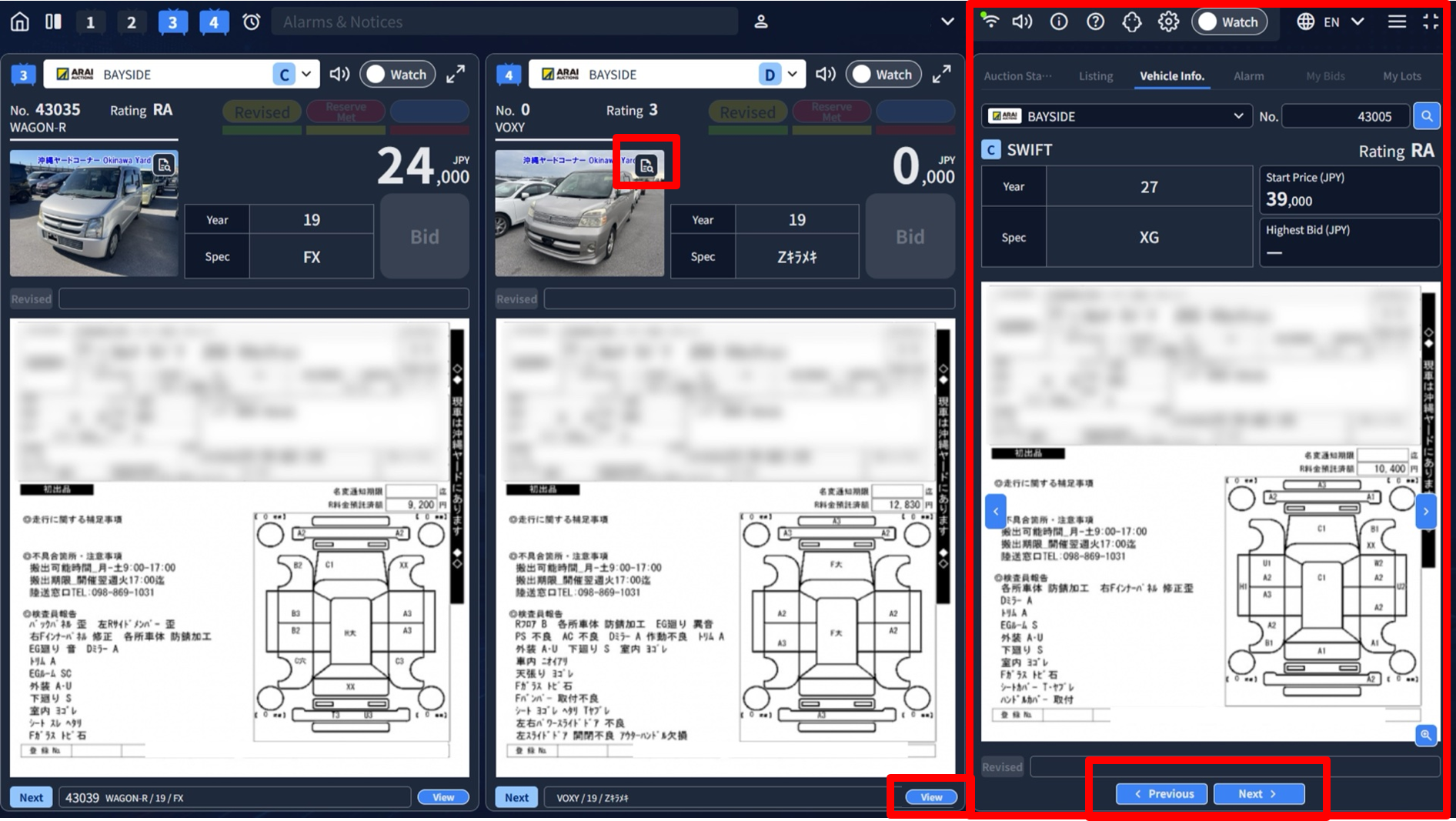
    02 View Vehicle Details

    • Click “View” at the bottom of the screen to open vehicle details on the right.
    • Select a venue, then enter a lot number to find a vehicle.
    • Use “< Previous” and “Next >” to move between lots.
     
    vehicleinfo-en

    03 Side Panel

     The right-hand panels provide auction status, auction lists, vehicle details, alerts, and your own listings. 

     
    auction status00-2

    Auction Status
    Check the progress of each venue and lane.

    auction list00 (2)
    Auction List
    View lot numbers, lanes, vehicle names, and starting prices.
    vehicle info00-1
     Vehicle Details
    Enlarge inspection sheets and vehicle photos.
    alarm panel00-2
    Alarms
    Add alarms and check your saved lots.
    my listing00

    My Listings
    View the lots listed by your company.

    auction status00-2
    auction list00 (2)
    vehicle info00-1
    alarm panel00-2
    my listing00

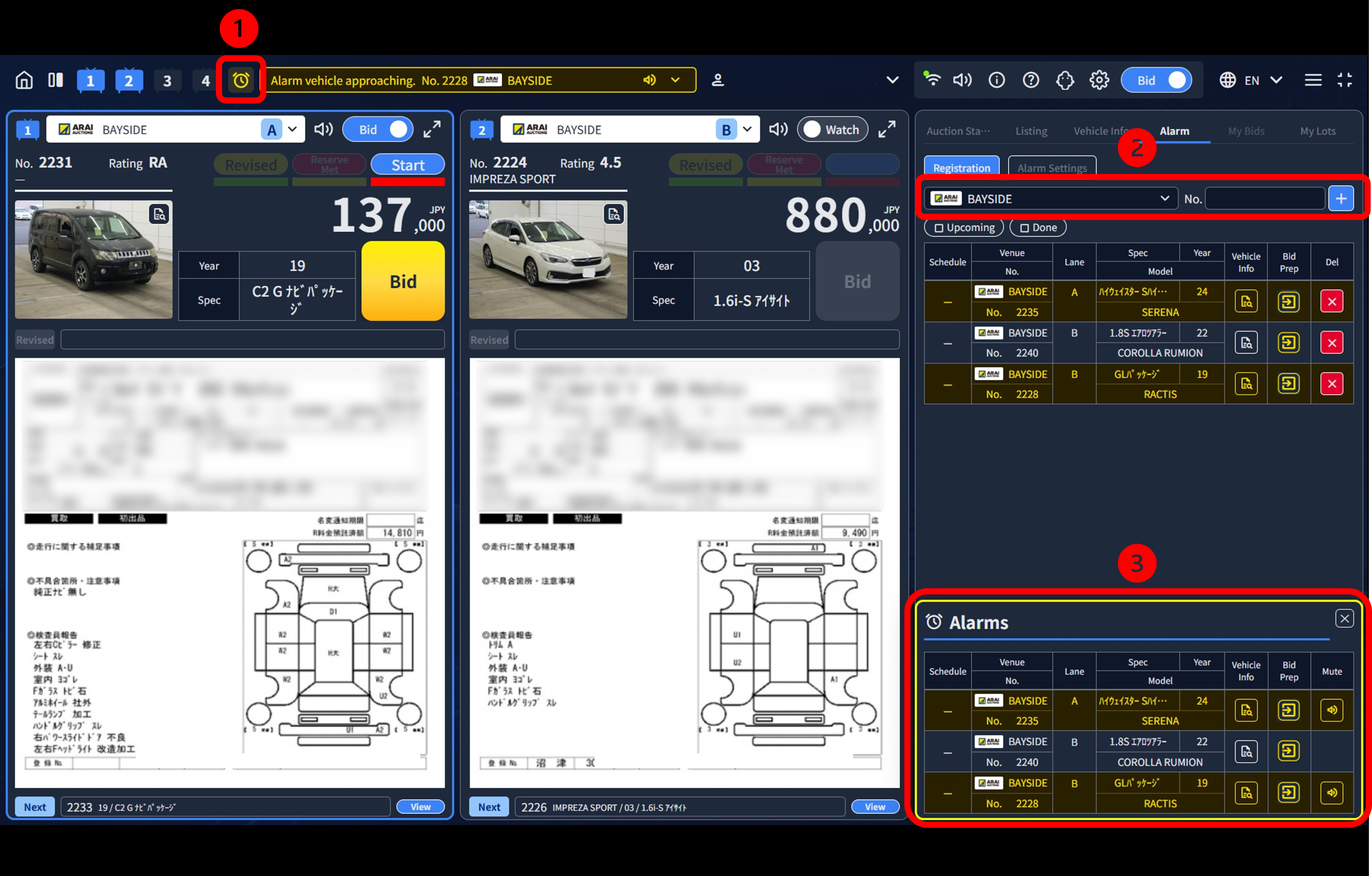
    04 Auction Alarms

    ① Click the icon at the top to open the alarm registration screen.
    ② Enter the lot number and click the button to add an alarm.
    ③ The selected lot appears when its auction approaches.
    alarm panel-en

    Tips (Browser Translation)


    Read page text in your preferred language with browser translation.

    Use Your Browser’s Translation Feature

    Use browser translation to read instructions and text-based vehicle details in your preferred language.


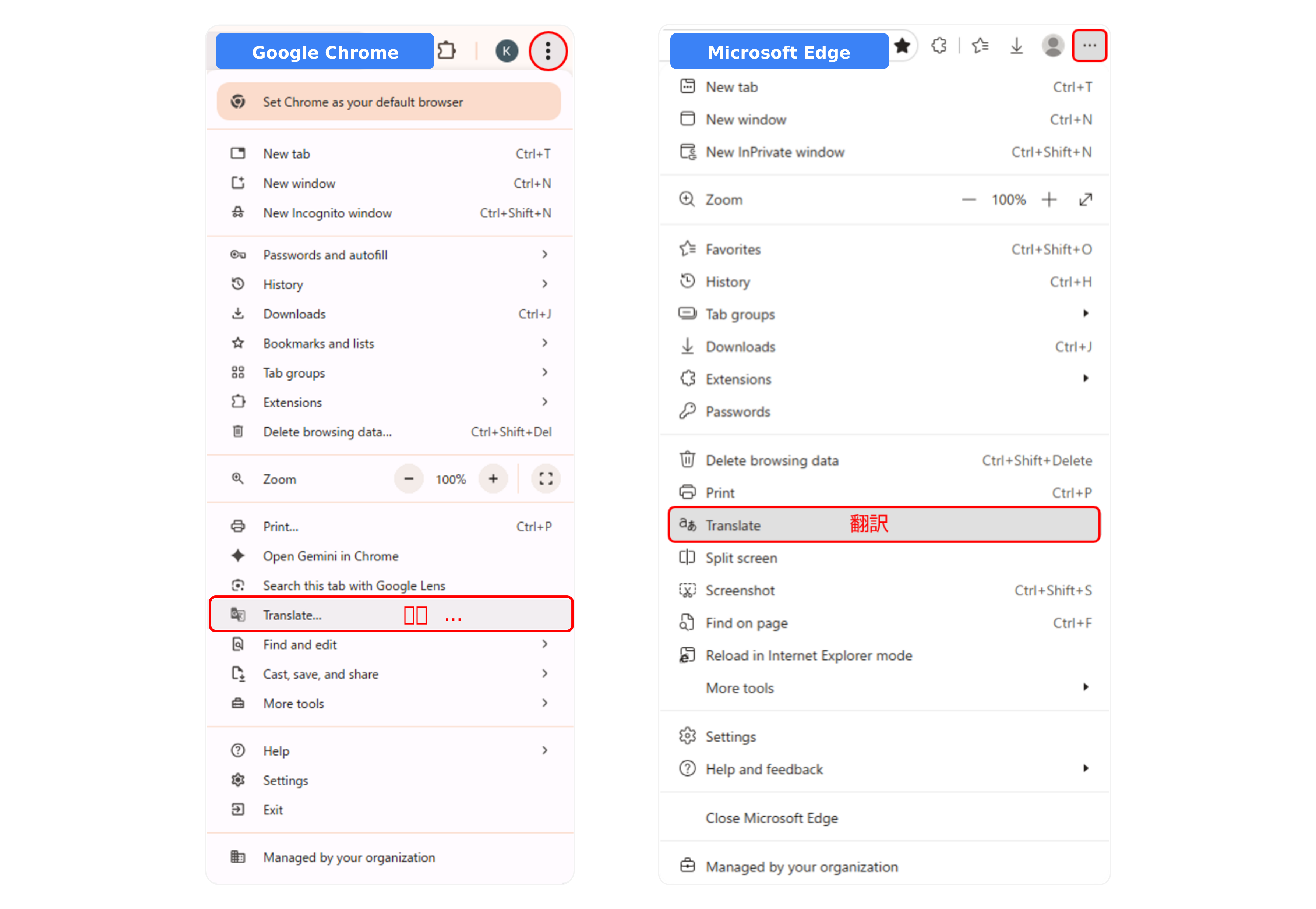
     1)Open page translation from your browser menu or the translation icon near the address bar.
     2)Choose your language.
     3)Switch back to the original text when you need to check the meaning.


    Note:

    *Steps vary by browser. In Google Chrome, you can also right-click the page and select the translation option.

    *Page translation works on text only.It does not translate text inside images, such as inspection sheets or photos.

    *Automatic translations may change the meaning, so check the original wording for prices, conditions, and important notices.

    translate


    FAQ

    A.

    No. You can use AI-NET REAL directly in your web browser. 

    A.

     Not yet. Please use a computer to join live auctions. We will announce mobile support separately. 

    A.

    You can view up to four auctions or lanes at once. Choose a one-, two-, or four-view layout. 

    A.

     No. The same account cannot be used in more than one session at a time.
    If you see an “Already logged in” message, log out on the other device or tab, then log in again. 

    A.

     Add the auction to a channel and switch from watching to bidding mode.
    You cannot bid in an auction that has not been added to a channel, or on your company’s own lots. 

    A.

     Yes. Save an alert for the lot to receive on-screen and sound notifications. Alerts also work for lanes outside your current view.
    Use Alert Settings to adjust the timing and turn alert sounds or pop-ups on or off. 

    A.

    Yes. Ver. 5.5 will remain available for a transition period, so you can continue using it while getting familiar with Ver. 6.0.

    A.

    We plan to fully transition to Ver. 6.0. The timing will be announced once confirmed.

    real6.0_manual
    View the User Guide for Full Instructions

    Contact Us


     For questions about AI-NET, please contact our support team on LINE. 


    Contact Us on LINE


    TOP
    Important News
    News
    Auctions
    • CONST. MACHINERY / AGRI. MACHINERY / FORKLIFT / PARTS
    • 4W BAYSIDE / 4W SENDAI
    • VAN & TRUCK / 4W OYAMA / PARTS
    Auction Search
    • Search Venues/Yards by Products
    • Search Products by Venue/Yard
    ARAI Locations
    • Sendai
    • Oyama
    • Machinery & Motorcycle
    • Bayside
    • Nagoya
    • Kansai
    • Fukuoka
    Auction Search
    • Search Venues/Yards by Products
    • Search Products by Venue/Yard
    Support Service
    • Slide Service
    • Proxy Inspection Service
    Schedules & Events
    About AI-NET
    • AI-NET Plan Information
    • AI-NET PLUS
    • AI-NET Tenpo Zaiko(Store Inventory) Service
    • AI-NET Service Application
    Steps to Join
    Application Form Download
    Auction Rules
    Corporate Information
    • President’s Message
    • Mission & Vision
    • Company
    • History
    • CSR & Sustainability
    • Auction & CI
    • SNS
    • Links
    Privacy Policy
    Disclosure Pursuant to the Secondhand Goods Business Act
    Members-Only Inquiry
    荒井商事 ARAI LOGISTICS ガナラ AraiMart