


TOPICS
AI-NET Normal Search or Easy Search, Which Do You Use?
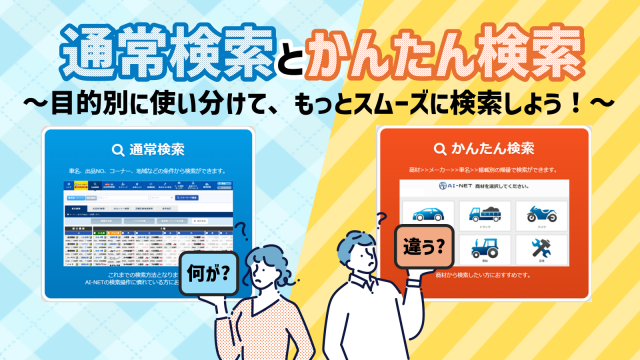
When you log in to AI-NET, you will first see "Normal Search" and "Easy Search."
If you are not sure where to start, try the free word search in the Normal Search first!
Simply enter a car name or model name, and you will immediately see a list of vehicles for sale.
This article provides an easy-to-understand summary of how to use the search method that best suits your purpose.
Table of Contents
- "Normal Search" or "Easy Search"?
- When in doubt: Free word search (3 steps)
- Quick Look by Purpose: Search Methods by What You Want to Do
- Search by Purpose: How to Use Normal Search
- Easy Search: Convenient when you want to search by broad criteria
- Operation Manual (PDF)
- Contact us
1. "Normal Search" or "Easy Search"?
When you log in, you will first see this screen.
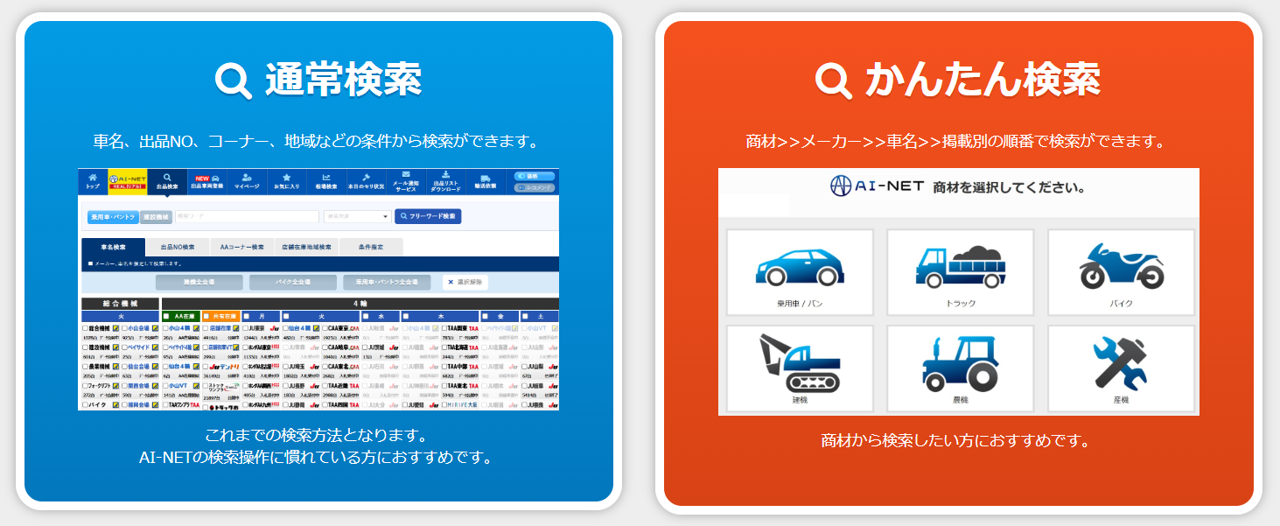
If you are not sure, we recommend "Normal Search" first.
The "Normal Search" can be used as a "first step" for new users or as a "full-fledged search" for experienced users, so you will eventually use this search more often.
Normal Search (Recommended)
In addition to searching by car name/model/manufacturer, you can also specify the conditions in detail according to your purpose.
It is smooth to start with the "Free Word Search" and add more criteria as you become accustomed to the search.
Easy Search
You can search by a wide range of criteria by simply selecting the manufacturer, shape, car model, venue, etc.
This is useful when you want to "look at the whole thing first" or "touch it intuitively."
Next, we introduce "Free Word Search (3 steps)," the easiest of the regular searches.
2. When in doubt: Free Word Search (3 Steps)
Free word search is the easiest way to find a car by entering a single piece of information such as car name/model/manufacturer.
Please follow the steps below to get started.
Start here: Open Normal Search (Global Menu)
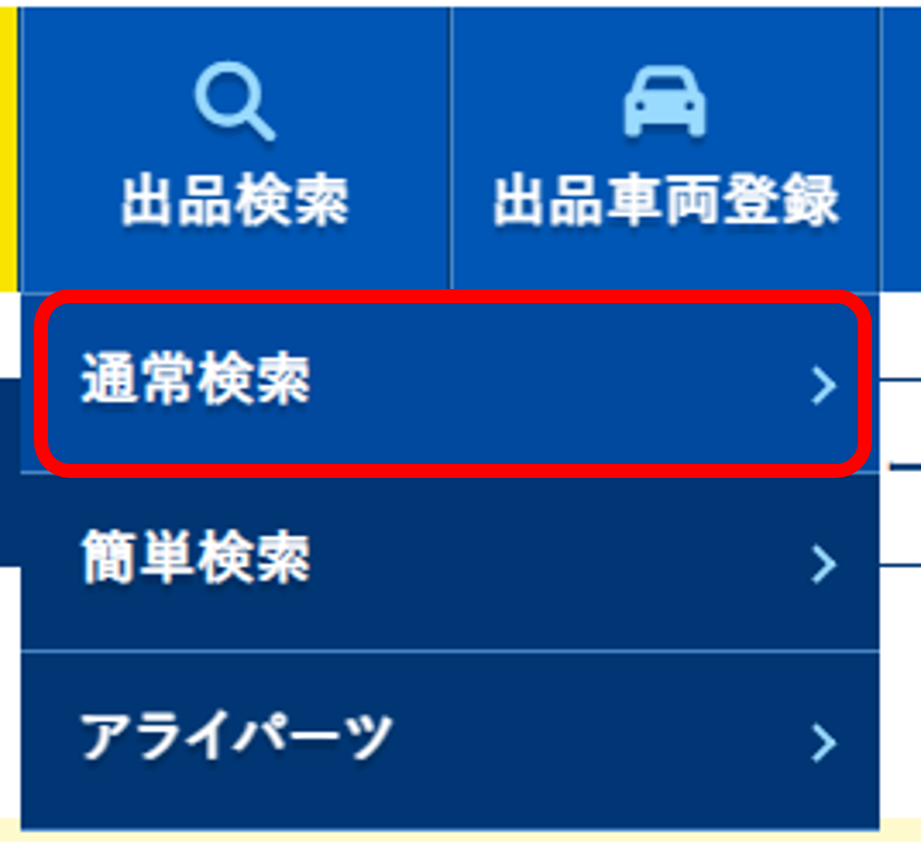
The procedure is the same for market quotes search
To check past quotes, simply select "Quotes Search" from the global menu. The following steps are the same: select a product, enter a free word, and then search.
STEP 1: Select a product
Select a product such as "Passenger Cars and Van Trailers" or "Construction Machinery (including Agricultural Machinery and Forklifts)".

STEP 2: Enter free words
Enter the vehicle name/model/manufacturer. (e.g., Hiace, PC200, Komatsu, etc.)
STEP 3: Click the search button
Clicking the Search button will display a list of applicable vehicles.
This is ideal for "I want to see what kind of vehicles are on display first," or "I don't have a specific condition, but just know the name of the vehicle."
❗One point❗
If you set too detailed conditions, it may be difficult to obtain search results. It is recommended to start with a broad search using free words and add more conditions as needed.
Next, here is a quick look at "which search to use" by what you want to do.
3. Quick Look by Purpose: Search Methods to Choose from According to What You Want to Do
If you are not sure which search method to use, the fastest way is to start with "what you want to do."
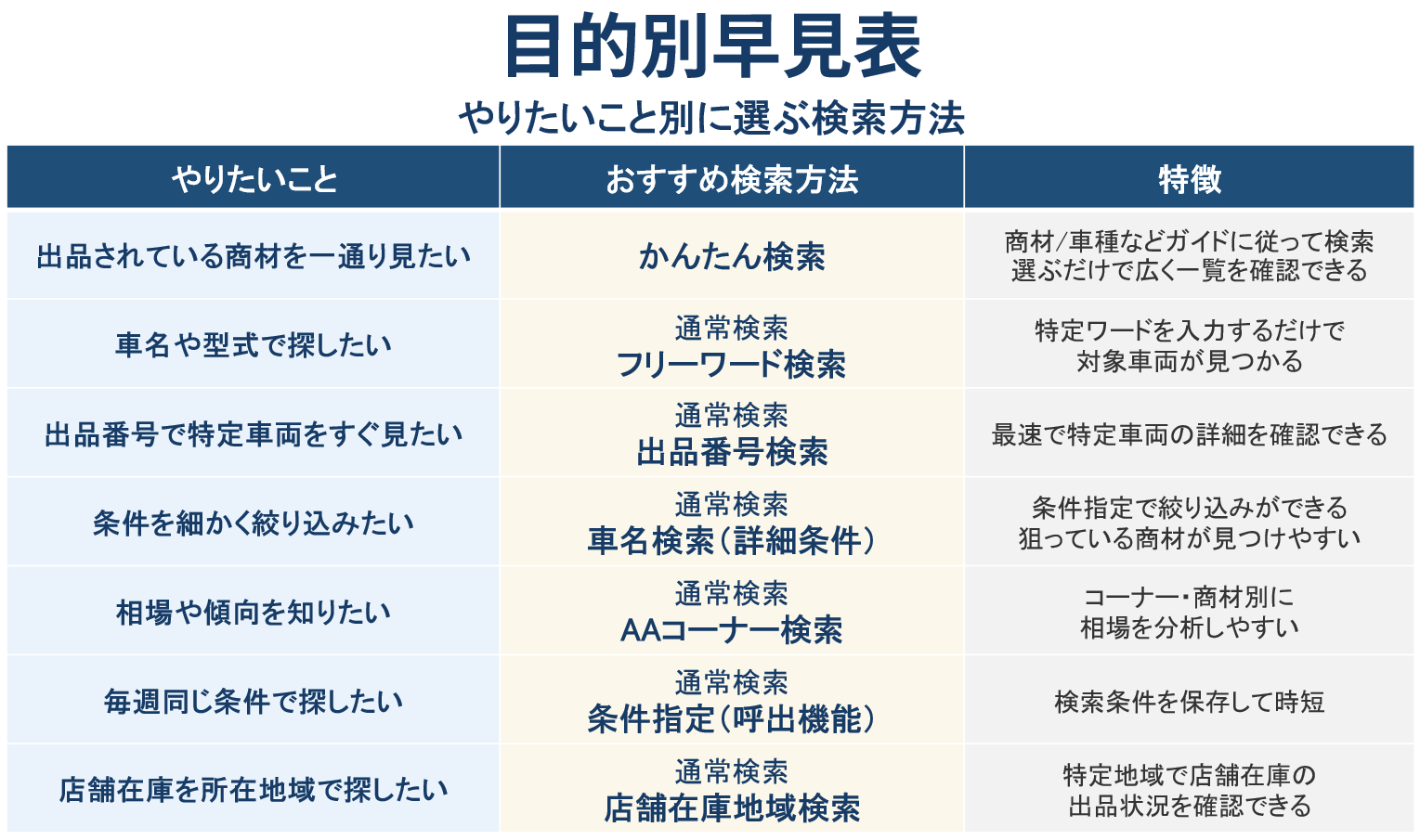
📌 If you are lost, start with
Normal Search → Free Word Search (car name/model/manufacturer) is recommended.
Next, we introduce "Search by Purpose" of Normal Search (Car Name Search / Listing Number Search / AA Corner Search, etc.).
4. Search by Purpose: How to Use Normal Search
In Normal Search, you can select various search methods.
Please utilize them according to your purpose.
Vehicle Name Search
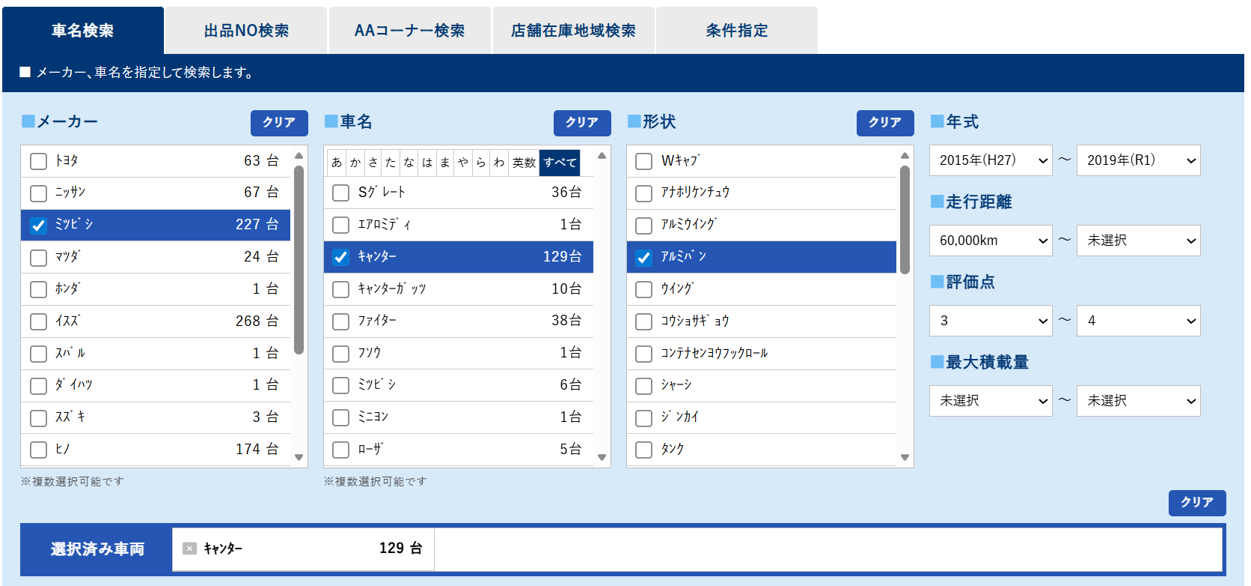
You can narrow down your search by specifying the venue, merchandise, and vehicle name, and then adding conditions such as year/mileage/rating points.
This is recommended when you have a specific vehicle you are looking for.
Search by Lot Number
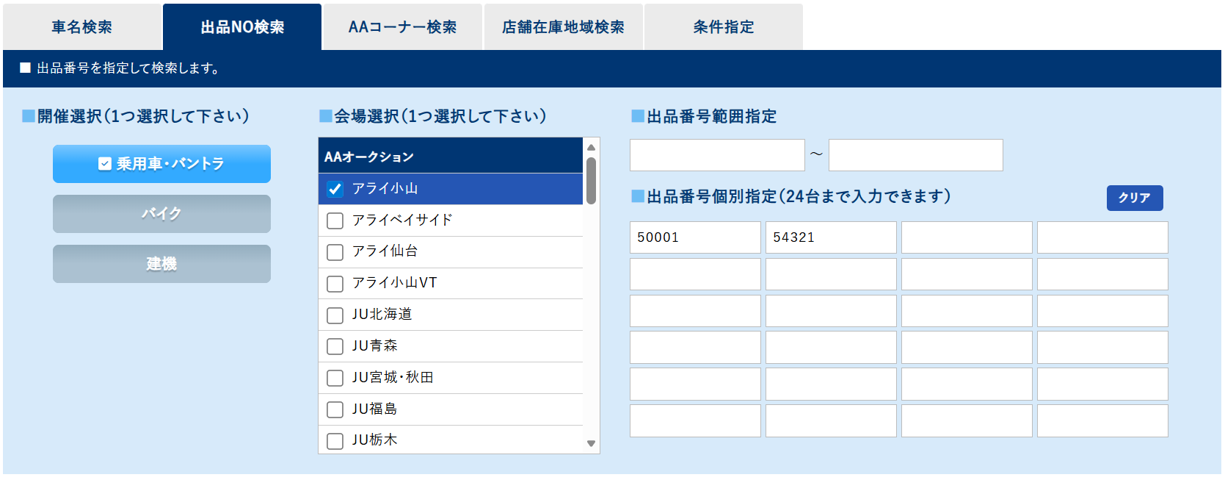
You can search for a vehicle directly by its listing number.
This is useful for checking the viewing status of vehicles listed in the company's inventory or checking the actual vehicle for inspection.
AA Corner Search
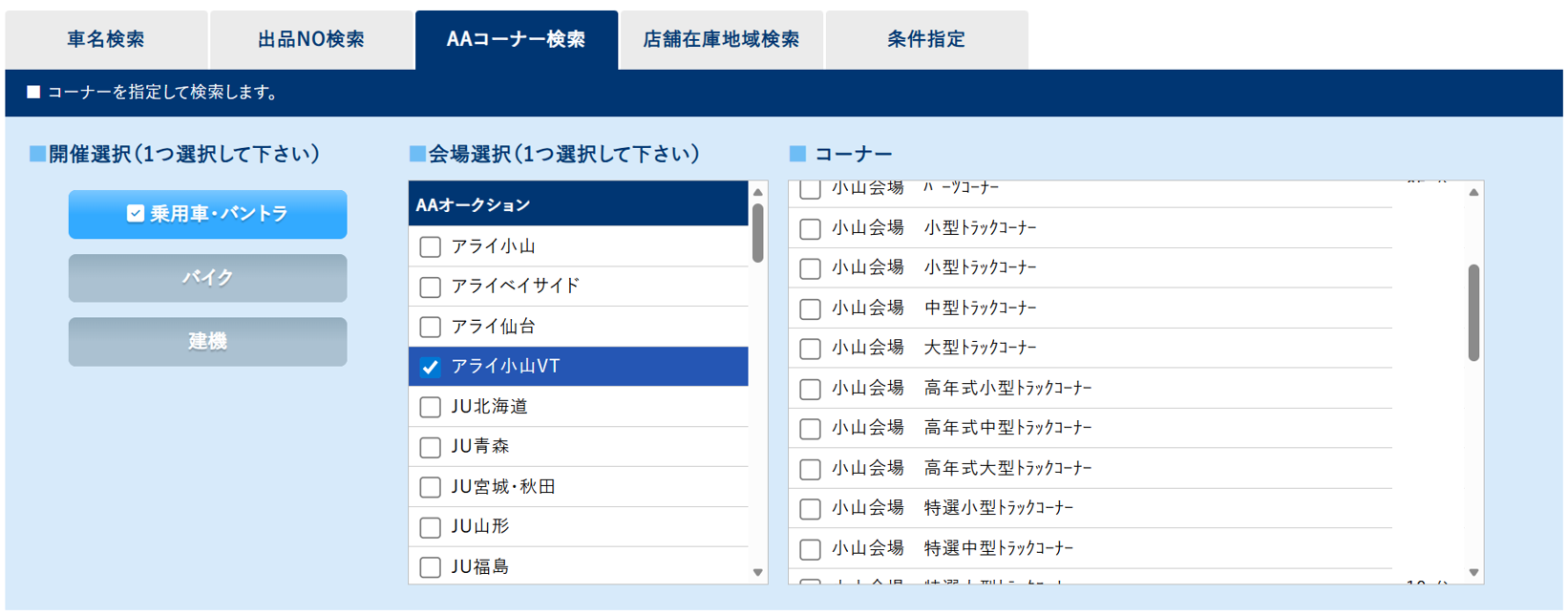
You can display a list of vehicles by a specific corner.
This is suitable for checking market prices and understanding trends in exhibits.
Store Inventory Area Search
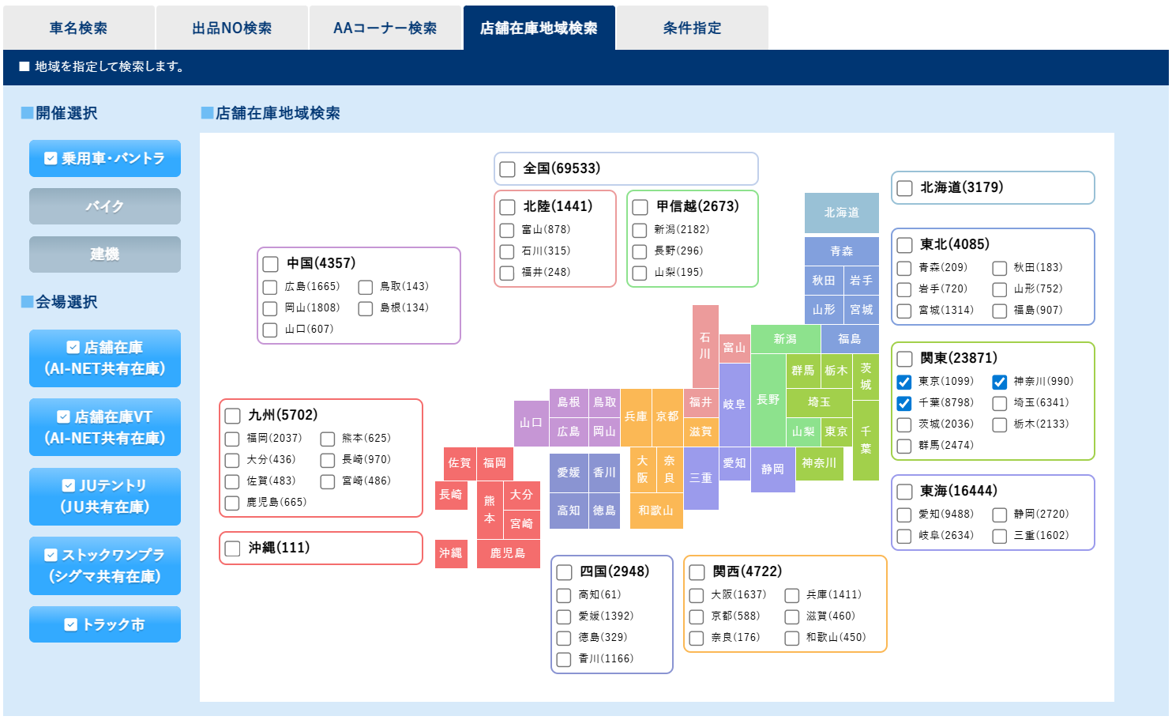
Convenient for narrowing down the location (region) of vehicles listed in a store's inventory.
Condition-specified Search
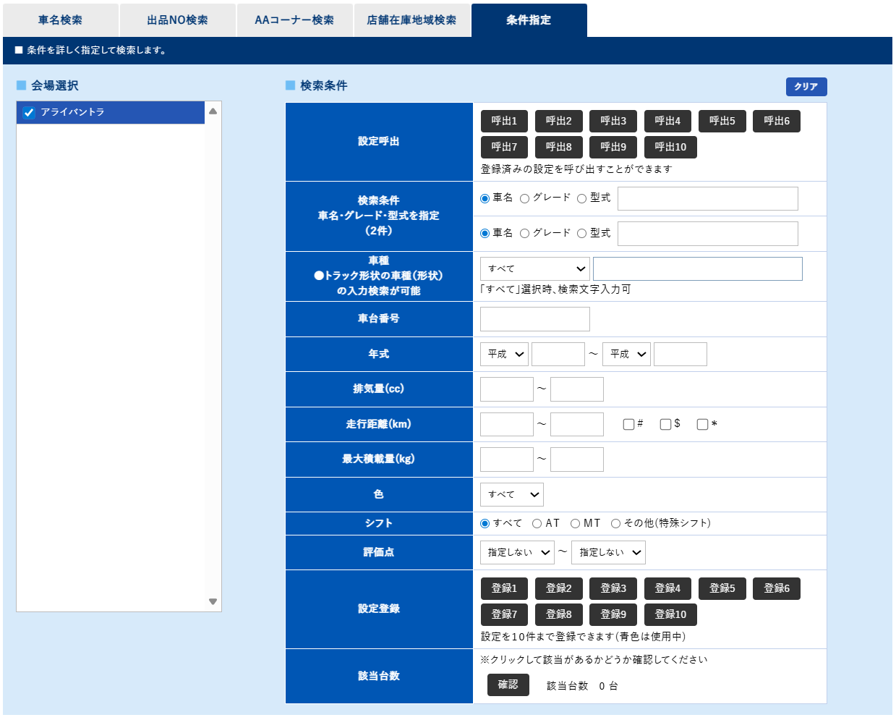
In addition to being able to select multiple criteria, frequently used criteria can be registered and searched again smoothly next time.
5. Easy Search: Convenient When You Want to Search Using a Wide Range of Criteria
Easy Search is a simple search method in which you only need to select the manufacturer, shape, car model, venue, and so on.
It is recommended for those who want to see the whole market first and cannot fully decide on detailed criteria.
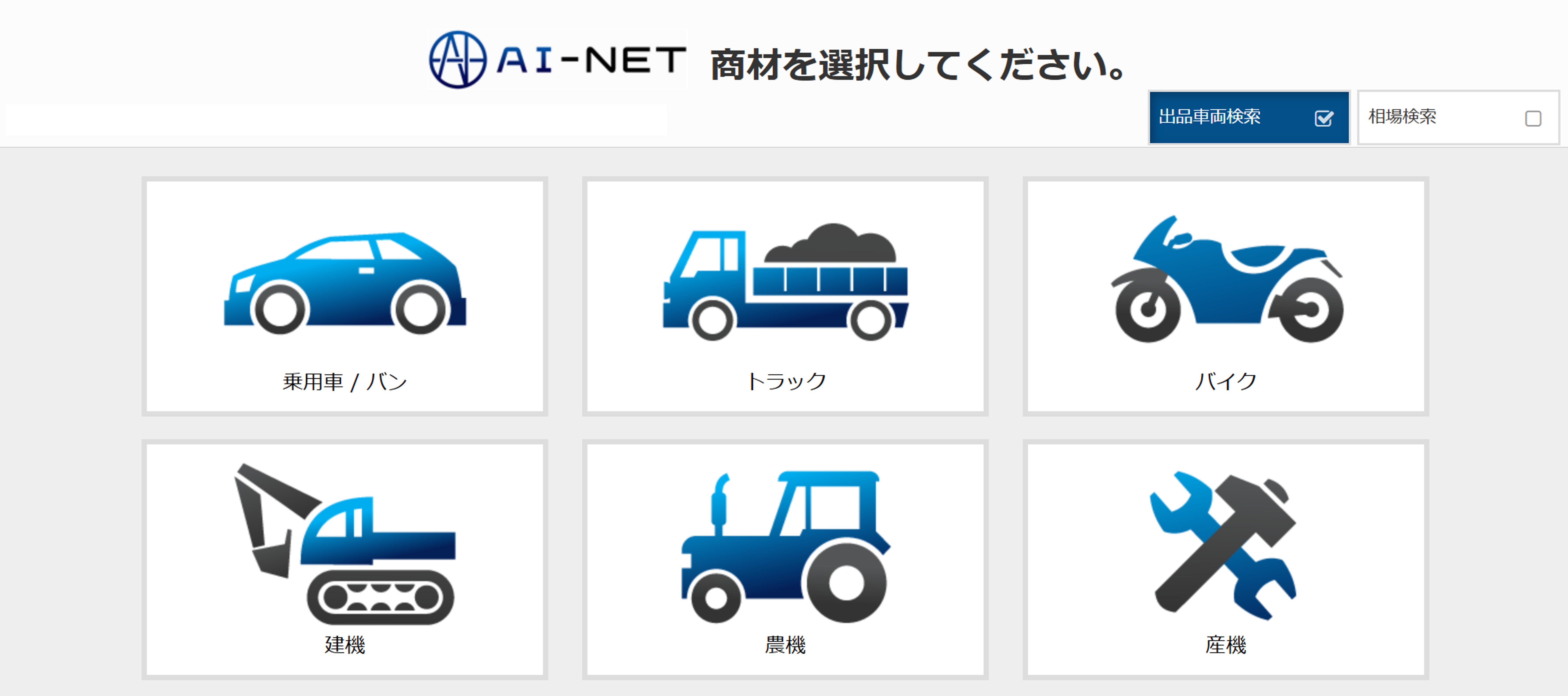
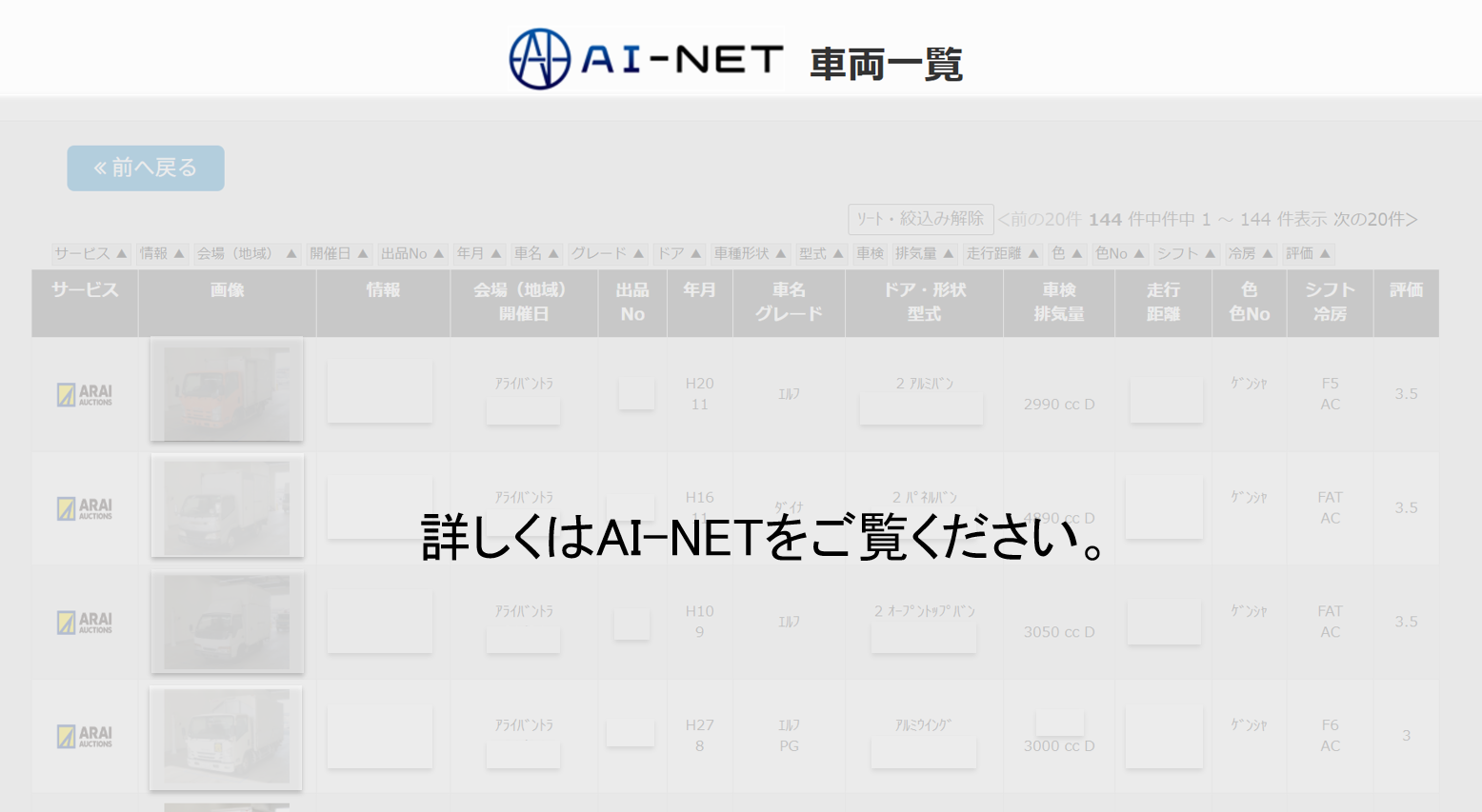
- You can search by a wide range of conditions.
- Intuitive and easy to operate, even for first-time users.
- Convenient for checking the market price and grasping the whole picture.
6. Operation Manual (PDF)
For more detailed operation, please refer to the following manual.
7. Inquiry
If you have any questions about AI-NET operation, please feel free to contact the AI-NET Group.
AI-NET Group
Phone number: 0285-45-1561
LINE: @ainet (Click here to display QR code)
倉庫の片隅で眠っているフォークリフト、
今こそ「世界の市場」へ。
高く売りたいなら、アライオークション関西会場への出品が最短ルート。
まずは「会員登録」の選択肢を検討してみませんか。